Managing multiple Google Ads accounts can quickly become overwhelming, especially for agencies, freelancers, or businesses running campaigns across different brands or clients. That’s where a Google MCC account (My Client Center) comes in. This comprehensive guide will walk you through everything you need to know about creating, managing, and optimizing a Google MCC account to streamline your advertising efforts and scale with confidence.
What is a Google MCC Account and Why Is It Important?
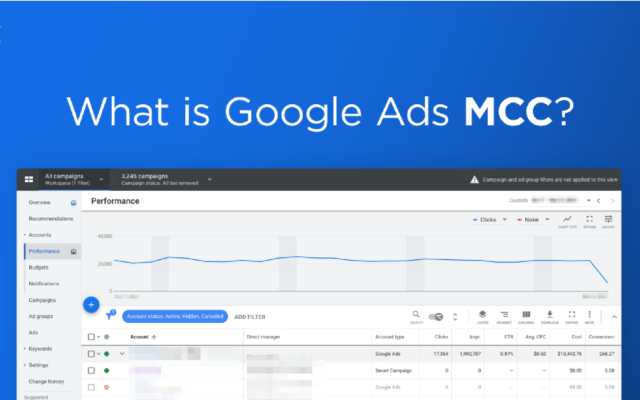
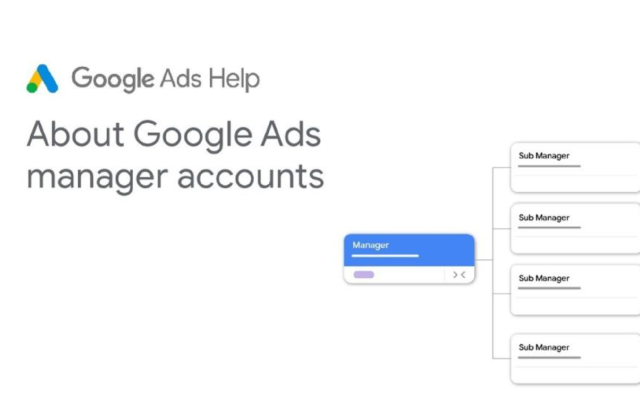
A Google MCC account is a master account that allows you to manage multiple Google Ads accounts from a single dashboard. Instead of logging into each Google Ads account individually, MCC consolidates access and control, making it an essential tool for agencies, consultants, and enterprise marketers.
Key Benefits of Using a Google MCC Account
1. Centralized Management
With a Google MCC account, you can view and manage multiple Google Ads accounts without needing to log in and out repeatedly. This is especially useful for marketing agencies or businesses with various brands and campaigns.
2. Save Time and Increase Efficiency
Switching between accounts is seamless within the MCC interface. You can also perform bulk actions, monitor account performance side by side, and reduce administrative workload significantly.
3. Flexible User Access and Permissions
The MCC account enables you to grant access to different users with varying permission levels. This flexibility ensures secure collaboration without compromising account integrity.
How to Create a Google MCC Account
Prerequisites
- A Google account (you can create one for free if needed).
- A professional email address and clear naming conventions if used for agency purposes.
Step-by-Step Guide to Set Up an MCC Account
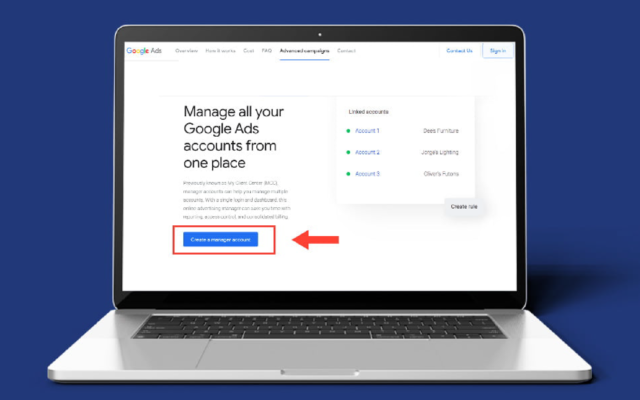
- Go to Google Ads Manager Account.
- Click Create a manager account.
- Choose the account name and primary use (e.g., “to manage other people’s accounts”).
- Select your billing country and time zone.
- Submit the form and verify your email.
Once set up, you can start linking existing accounts or creating new Google Ads accounts directly within the MCC dashboard.
Linking and Managing Accounts within MCC
Add Existing Google Ads Accounts
- From your MCC dashboard, click “+” then “Link existing account”.
- Enter the Customer ID (CID) of the Google Ads account you wish to add.
- The client will receive a request for approval.
- Once approved, the account will appear in your MCC.
Create New Google Ads Accounts from MCC
You can also create new child accounts:
- Click “Create account” > Choose “Google Ads account”.
- Configure billing, time zone, and campaign settings.
- The account becomes part of your MCC structure instantly.
Organizing Accounts Effectively
Use account labels and descriptive names to keep your dashboard organized. You can categorize accounts by client, region, or product type for easier navigation.
Essential Features and Tools Inside Google MCC
Performance Reporting
MCC offers a top-level overview of all connected accounts. You can generate cross-account reports to compare metrics like impressions, CTR, and conversion rate across clients or campaigns.
Budget Management
Although MCC does not allow shared budgets across accounts, it enables quick access to budget settings. Agencies can use this to monitor spend and adjust strategies accordingly.
Labels for Campaign Organization
Apply custom labels to campaigns across different accounts for better filtering and reporting. Labels are particularly useful for tracking seasonal campaigns or categorizing performance by strategy.
Expert Tips for Effective MCC Management
Streamline Workflow
Use saved views, bulk edits, and scripts to minimize manual tasks. MCC accounts support Google Ads Editor and API integrations for deeper automation.
Maintain Security and Role-Based Access
Avoid using personal accounts for client campaigns. Assign user roles (admin, standard, read-only) to ensure proper control and limit potential risks.
Use Automation and Scripts
Leverage scripts to automate tasks like budget pacing, ad disapprovals, and bid adjustments. This enhances performance while reducing human error.
Frequently Asked Questions (FAQs)
1. Is Google MCC free to use?
Yes, setting up and using a Google MCC account is completely free.
2. How do I remove an account from MCC?
You can send a request to unlink from either the MCC account or from within the child account.
3. Is there a limit to how many accounts MCC can manage?
Google does not publish a hard limit, but managing too many accounts can affect performance and usability.
4. What is the difference between a regular Google Ads account and an MCC account?
A regular account manages one ad account. An MCC account manages multiple ad accounts from one dashboard.
Final Thoughts
If you’re serious about managing multiple Google Ads campaigns at scale, a Google MCC account is not just a convenience—it’s a necessity. Whether you’re an agency, a digital marketer, or a business running multiple campaigns, MCC provides structure, control, and efficiency.
At LLD Agency, we specialize in providing high-quality Google Ads accounts tailored to your needs. Our accounts come with strong spending power, flexible payment methods, and expert support. If you’re looking to scale your ad operations or need a reliable source of Google Ads accounts, reach out to our team to get started.