Why Linking Google Ads Accounts Matters
In today’s digital marketing landscape, data is everything. To truly harness the power of your campaigns, it’s essential to link Google Ads accounts with key tools like Google Analytics, Merchant Center, and Search Console. These integrations enable more accurate tracking, deeper insights, and campaign optimization—essentials for any business looking to scale through paid advertising.
If you’re managing multiple marketing channels or running performance-driven campaigns, failing to connect your Google Ads account with other platforms could mean missed opportunities and wasted ad spend.
Let’s dive into the benefits and learn how to implement these powerful connections.
Why You Should Link Your Accounts with Google Ads
Linking your Google Ads account with other Google services isn’t just recommended—it’s a strategic move. Here’s why:
- Improved Conversion Tracking: Gain more precise attribution and understand what drives ROI.
- Leverage Cross-Platform Data: Combine data sources to inform smarter bidding and audience targeting.
- Boost Campaign Quality: Improve Quality Score, click-through rates, and relevance with better insights.
- Smarter Decisions: Unlock granular insights into user behavior, search intent, and product interactions.
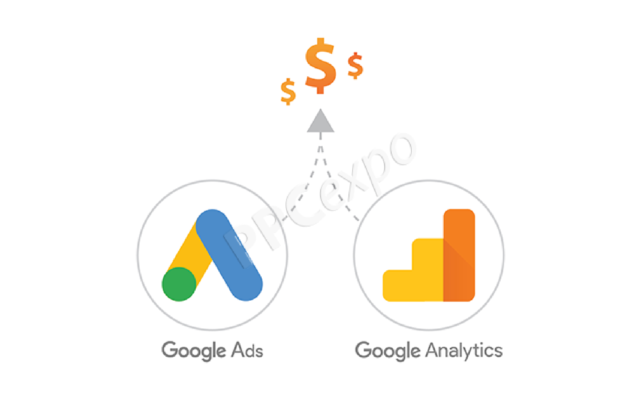
How to Link Google Ads with Google Analytics
Prerequisites Before Linking
Before you link Google Ads accounts with Analytics, ensure the following:
- You have edit-level access to both the Google Ads and Analytics accounts.
- The Google Analytics property is using Universal Analytics or GA4, properly configured.
Steps to Link Google Ads and Analytics
- Log into Google Analytics and go to Admin.
- Under the property column, click Google Ads Linking.
- Select the Google Ads account you want to link.
- Enable data sharing and click Link Accounts.
How to Verify a Successful Link
- Navigate back to your Google Ads account.
- Go to Tools & Settings > Linked Accounts.
- Confirm that Analytics appears with a “Linked” status.
This connection allows you to view user behavior post-click and optimize accordingly.
How to Link Google Ads with Merchant Center
Benefits of Linking with Merchant Center
Especially crucial for eCommerce brands, linking enables:
- Shopping ad eligibility and richer product listings.
- Automatic feed updates from your product inventory.
- Seamless remarketing based on product views.
Steps to Link Google Ads and Merchant Center
- In Merchant Center, go to Settings > Linked Accounts.
- Click Link next to the relevant Google Ads account.
- Approve the request from your Google Ads account dashboard.
Manage or Remove the Link
You can revisit this section anytime to manage or revoke access—giving you control and flexibility.
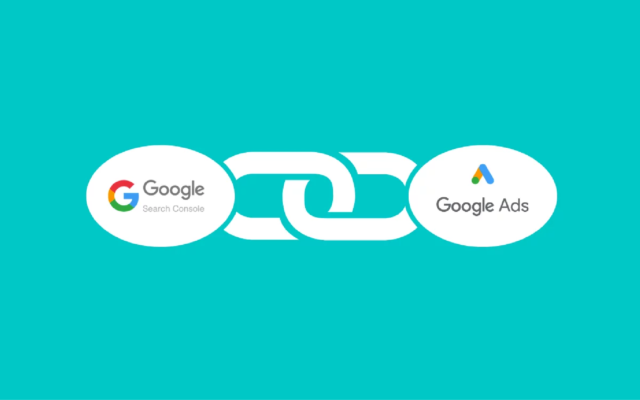
How to Link Google Ads with Search Console
Why Link with Search Console?
This integration provides critical insights into organic vs. paid performance, letting you:
- Identify high-performing search queries.
- Optimize keyword strategy with unified reports.
- Understand how organic presence affects ad results.
Linking Steps
- In Google Ads, go to Tools > Linked Accounts > Search Console.
- Enter your website URL and verify ownership if not already done.
- Click Link to complete the process.
Analyze the Paid & Organic Report
Once connected, navigate to Reports > Predefined Reports > Basic > Paid & Organic. This allows performance comparison and better keyword strategy.
Key Considerations When Linking Google Ads Accounts
When you link Google Ads accounts, keep these points in mind:
- User Permissions: Ensure the person linking accounts has admin or equivalent rights.
- Data Security: Only link accounts you trust; avoid sharing sensitive data unnecessarily.
- Troubleshooting Issues: If linking fails, double-check access rights, account types, or browser issues.
Use Linked Account Data to Optimize Campaigns
Once you’ve linked all relevant accounts, it’s time to make the data work for you:
- Analyze User Behavior: Use Google Analytics to understand customer journeys and conversion paths.
- Product-Level Optimization: Leverage Merchant Center data to tailor ads based on product performance.
- Refine Keywords: Utilize Search Console insights to add negative keywords or enhance ad copy based on organic trends.
This integrated approach creates a feedback loop that powers smarter, faster marketing decisions.
Frequently Asked Questions (FAQ)
How many accounts can I link to Google Ads?
There’s no strict limit. However, make sure you maintain access permissions and track them responsibly.
Does linking accounts improve ad performance?
Yes. It enables better targeting, tracking, and optimization based on accurate, real-time data.
Can I unlink an account if needed?
Absolutely. You can manage and remove any linked account at any time through your Google Ads dashboard.
Does linking cost anything?
No, linking Google Ads accounts with other Google services is completely free.
Enhance Your Campaigns with LLD Agency
At LLD Media, we specialize in strategic Google Ads management, account linking, and campaign optimization. Whether you’re setting up your first campaign or scaling globally, our expert team ensures all your accounts—Analytics, Merchant Center, and Search Console—are linked properly for data-driven performance.
Let us handle the technical integration so you can focus on what matters most—growing your business.
Ready to Elevate Your Advertising?
Linking Google Ads accounts isn’t just a best practice—it’s a competitive advantage. Maximize your ROI, make informed decisions, and streamline your ad performance with proper account integrations.
Contact LLD Media today for a free consultation or expert account setup. Let’s connect your data for smarter marketing.